
Podcast clip maker
Start with a video episode in Auto Clips. Choose a maximum clip length and the number of candidates, then review the vertical clips before using them. Auto Clips is included on Pro and Teams.
Explore podcast clip creationFor podcasters
Give each episode a considered social release. ClipPush brings podcast clips, platform copy and a publishing calendar into one reviewed campaign, starting with your finished edits or a full video episode.
A finished episode and a folder of edited clips need different starting points. Keep the recording and editing tools you already use, then choose the preparation work you want ClipPush to handle.
Start with a video episode in Auto Clips. Choose a maximum clip length and the number of candidates, then review the vertical clips before using them. Auto Clips is included on Pro and Teams.
Explore podcast clip creationAlready edited the clips in another tool? Bring the finished files into the library together and organise them by show. You can use the publishing workflow without generating new clips.
See batch uploadingGive the campaign its episode context and audience, then prepare titles and post captions for the selected accounts. Check guest names, mentions and wording. Social post copy is separate from subtitles inside the video.
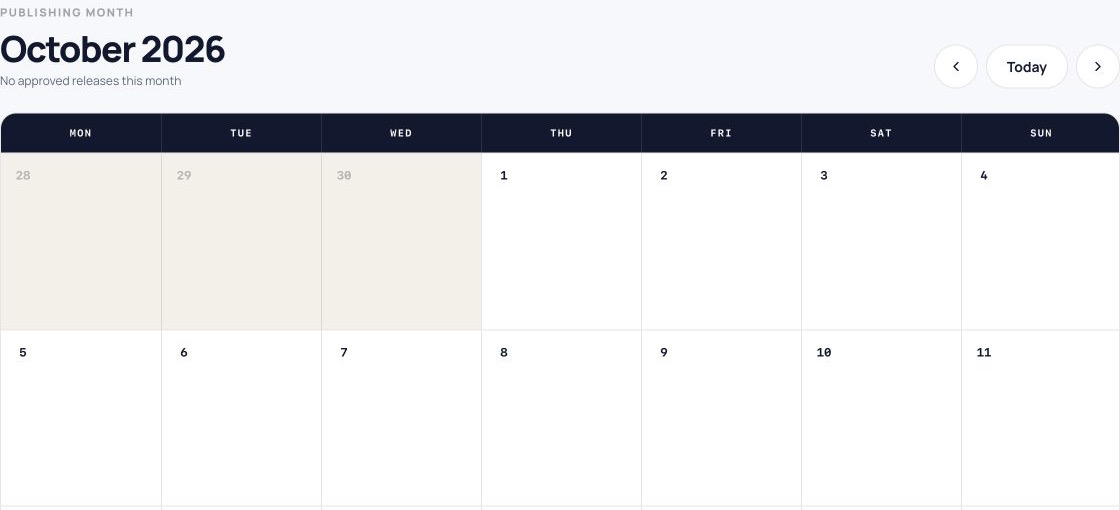
See how campaign captions workSet the campaign cadence and inspect each release time in the show’s timezone. Review the clips, copy and accounts before approval. Calendar shows approved releases; Queue records the outcome for each destination.
Explore the scheduling workflowSuppose an interview gives you three useful clips: a question your listeners keep asking, a demonstration and the guest’s closing advice. Give each its own caption and place them on Monday, Wednesday and Friday. This is an editorial example, not a recommendation for the best posting days.
If each clip goes to two connected accounts, there are six destination versions to check. Review the caption, selected account and release time for every version. A single campaign keeps that review together without making every post identical.
Follow the podcast clip scheduling guide for the full process, or use the weekly video plan when you already have a larger batch of edits.
Podcast social media automation should leave you able to answer three questions: what will be posted, where will it go and when? ClipPush prepares campaign copy and release plans for review. Uploading a file or generating a caption does not publish it.
Once you approve a campaign, its destination jobs enter the queue. Check the result after each release time. Scheduled and processing are different from published, and a successful post on one account does not confirm delivery to another.
Read about campaign review and approval and check current platform availability. A listed roadmap integration is not an enabled publishing destination.
This public workflow covers clip preparation and social publishing. Recording Studio and podcast feed publishing are currently restricted to platform admins. Keep your existing recording and hosting arrangements unless you have separately confirmed access and a migration plan.
Auto Clips starts from a video recording, such as a filmed interview. It is not an audio-to-audiogram generator. If you already make video versions of your audio excerpts elsewhere, upload those finished videos through Clips.
No. Available connections, video requirements and publishing options vary. Check the platform guides before preparing your release, then review each destination version.
Start with one episode and a small batch you can review properly. Compare the current plan limits against your clip count, accounts and need for Auto Clips. Then create an account to prepare your first campaign.